"HTML is the skeleton of every web page. It doesn't make things pretty — it gives them meaning and structure."
Learning Objectives
By the end of this module, you will be able to:
- Write a basic HTML page structure
- Use common elements: headings, text, links, images, lists
- Understand semantic HTML and why it matters
- Avoid the most common beginner HTML mistakes
1. What HTML Is
HTML (HyperText Markup Language) uses tags to label pieces of content so the browser knows what they are. A tag usually wraps content: <h1>Hello</h1> says "this is a big heading."
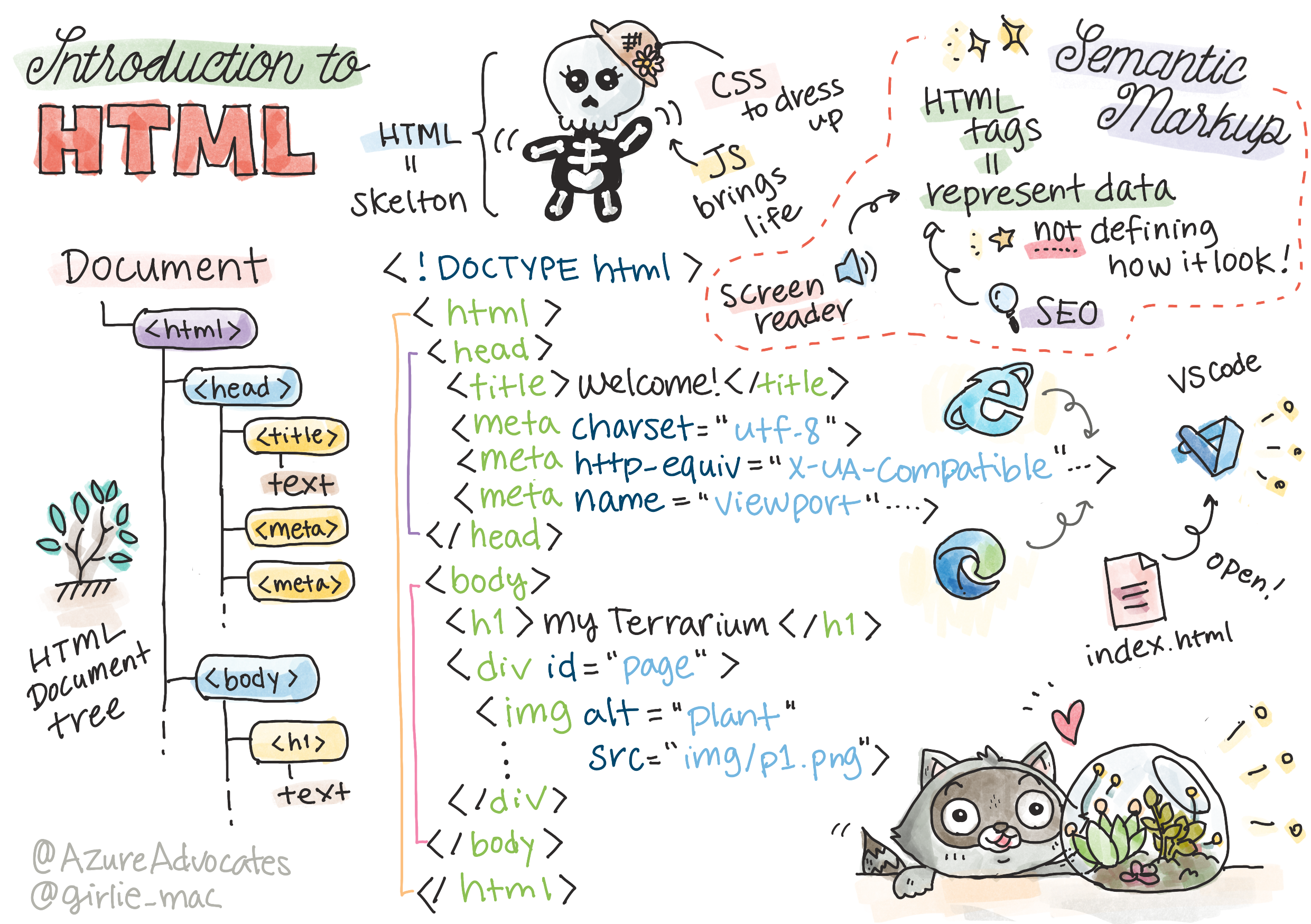
Every page starts with the same skeleton:
[object Object],
,[object Object],
  ,[object Object],
    ,[object Object],My Page,[object Object],
  ,[object Object],
  ,[object Object],
    ,[object Object],Hello, web!,[object Object],
    ,[object Object],My first paragraph.,[object Object],
  ,[object Object],
,[object Object],Key idea: The <head> holds information about the page (title, links to CSS). The <body> holds everything you actually see. Get this split clear and HTML stops being confusing.
Most tags come in pairs: an opening tag like <p> and a closing tag like </p>, with your content in between. A few are self-closing — <img> and <br> don't wrap anything. Tags can also carry attributes, extra settings written as name="value". For example, <a href="https://example.com"> uses the href attribute to say where the link goes.
Concept: "HyperText" is just text with links in it — the "hyper" means you can jump from page to page. That linking is the original superpower of the web, and it's why the <a> (anchor) tag is one of the most important tags you'll ever use.
2. Common Elements
| Element | Purpose |
|---|---|
<h1>–<h6> | Headings, largest to smallest |
<p> | A paragraph of text |
<a href="..."> | A link to another page |
<img src="..." alt="..."> | An image (always add alt!) |
<ul> / <ol> / <li> | Bulleted / numbered lists |
<button> | A clickable button |
Here are several of them working together:
[object Object],My Favorite Books,[object Object],
,[object Object],A short list of reads I love:,[object Object],
,[object Object],
  ,[object Object],[object Object],Book One,[object Object],[object Object],
  ,[object Object],Book Two,[object Object],
,[object Object],
Read it top to bottom and you can see the structure: a heading, a paragraph, then a bulleted list where the first item is a link. That readability is the whole point of HTML — even with no styling at all, the meaning is clear.
Common mistake: Leaving off the alt attribute on images. alt text describes the image for screen-reader users and shows if the image fails to load. Write what the image conveys (alt="Golden retriever puppy sleeping"), not alt="image" — and leave it empty (alt="") only for purely decorative images.
3. Semantic HTML
Semantic tags describe meaning, not just appearance — like <header>, <nav>, <main>, <article>, and <footer>. They make your page easier for search engines and screen readers to understand.
A quick tour of the common ones: <header> (top of the page or a section), <nav> (navigation links), <main> (the primary content), <article> (a self-contained piece like a blog post), <section> (a grouped chunk), and <footer> (the bottom, often with contact info). Used well, someone could grasp your page's whole outline just by reading the tag names.
Real-world use case: Screen readers let blind users navigate a page by jumping between its <nav>, <main>, and headings. Semantic HTML is what makes that possible — so choosing the right tag isn't just tidy, it's what makes your site usable by everyone.
Beginner mistake: Using <div> for everything. A page built only from <div>s works visually but is meaningless to assistive tech and search engines. Reach for a semantic tag (<nav>, <main>, <footer>) first, and use <div> only when nothing more specific fits.
4. A Quick Word on Forms
Forms collect input with elements like <input>, <textarea>, and <button>. Always pair an <input> with a <label> so it's clear and accessible.
A <label> connects to its input with a matching for and id, so clicking the label focuses the box — and screen readers announce what the field is for:
[object Object],Email:,[object Object],
,[object Object],
We'll do much more with forms in Module 13, where they start collecting real data.
Try this: Recreate your favorite website's heading, a paragraph about it, and a link — using only HTML, no styling. It'll look plain, and that's the point: you're seeing structure before style.
Key Takeaway: HTML structures a page with tags inside a <head> (page info) and <body> (visible content). Learn the common elements (headings, paragraphs, links, images, lists, buttons), prefer semantic tags over endless <div>s, and always give images alt text and inputs a <label>.
Further Learning
Adapted from Microsoft's Web Dev for Beginners (MIT License). Sketchnote by Tomomi Imura.