"You only need three free tools to build for the web: a code editor, a browser, and a place to type commands. Let's set them up."
Learning Objectives
By the end of this module, you will be able to:
- Choose and set up a code editor
- Use your browser as a developer tool
- Understand what the command line is for
- Preview a web page you're building
1. The Three Tools You Need
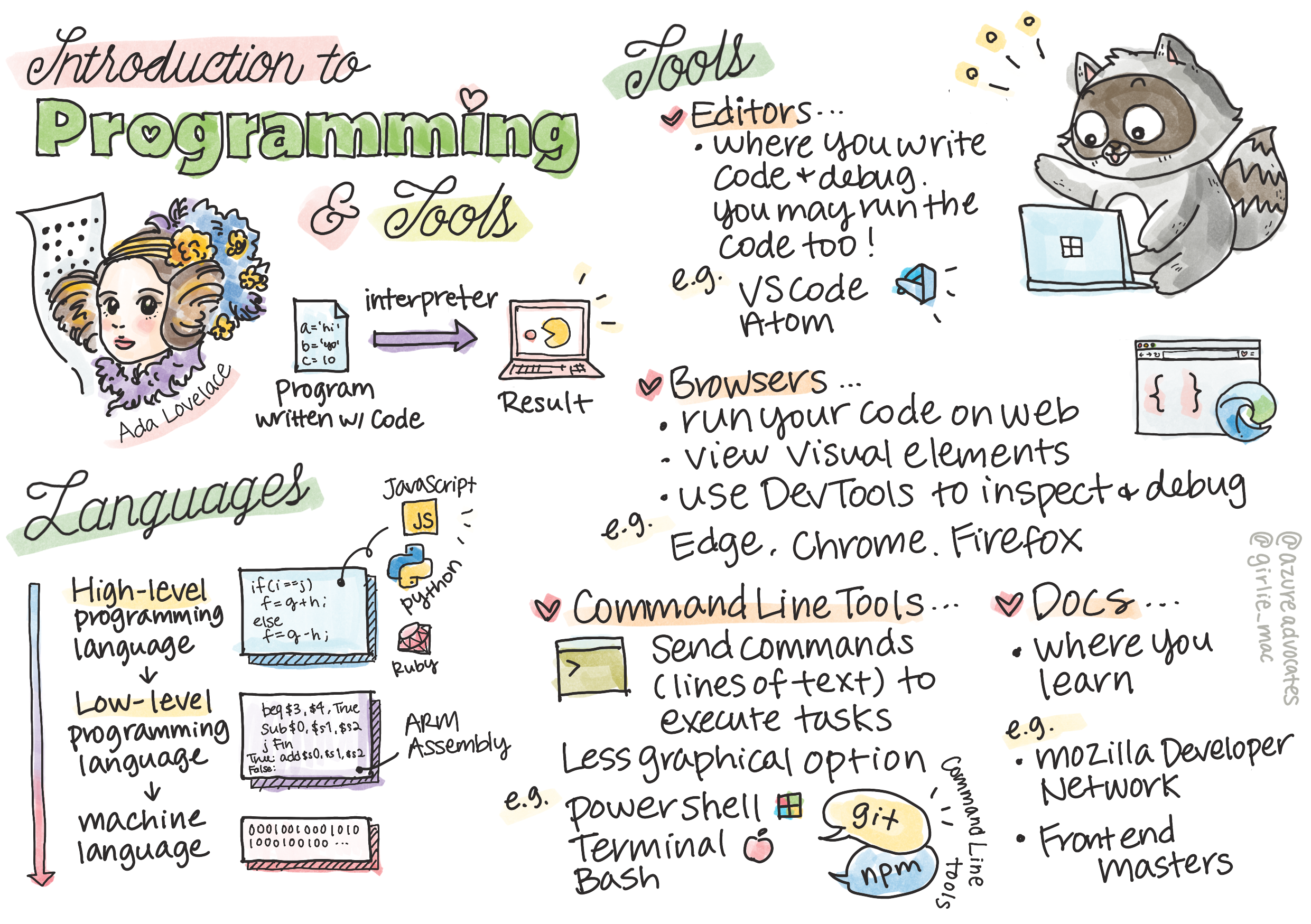
| Tool | What it's for | Popular free choice |
|---|---|---|
| Code editor | Writing your HTML, CSS, and JS | Visual Studio Code |
| Browser | Viewing and inspecting your pages | Chrome, Edge, Firefox |
| Command line | Running tools and commands | Terminal / PowerShell |
Key idea: A code editor is just a smart text editor. It colors your code, spots typos, and autocompletes — but the files you create are plain text that any browser can open.
Why these three and not more? Because together they cover the whole loop of building: you write code in the editor, you run and view it in the browser, and you manage it (installing tools, starting servers, using Git) from the command line. Everything else — frameworks, fancy tools — comes later and sits on top of these basics. Start with just these three and resist the urge to install everything at once; a simple setup keeps you focused on learning, not configuring.
Concept: None of these tools cost money, and they run on Windows, macOS, and Linux. Professional developers at big companies use the exact same free tools you're about to install. There's no secret "pro version" you're missing out on.
2. Your Code Editor
Visual Studio Code (VS Code) is free and the most popular editor for beginners. Helpful first add-ons:
- Live Server — instantly preview your page and auto-refresh on save
- Prettier — auto-formats messy code neatly
You don't need to memorize anything — you'll pick up shortcuts as you go.
When you open a folder in VS Code, the left panel shows your files and the big area is where you type. Color coding (called syntax highlighting) turns tags, text, and values different colors so mistakes jump out. If you forget to close a tag or misspell a property, the editor often underlines it before you even run the page.
Try this: After installing VS Code, open a built-in terminal with View → Terminal, right inside the editor. Now your code and your command line live in one window — no switching between apps.
3. The Browser Is a Dev Tool
Your browser isn't just for viewing pages — it has built-in Developer Tools (press F12). You'll use them constantly to inspect elements, test styles, and read messages. We cover these properly in Module 10.
For now, just know the DevTools give you three superpowers: inspect any element to see its HTML and CSS, edit styles live to experiment without touching your files, and read the console, where JavaScript prints messages and errors. Right-click almost anything on a page and choose Inspect to try it.
Real-world use case: Curious how a website achieved some effect? Open DevTools and inspect it. Every site's HTML and CSS is visible to you — the web is one giant, readable example you can learn from.
4. The Command Line (Don't Panic)
The command line is a text way to tell your computer what to do — create folders, run tools, start a server. Beginners only need a handful of commands, and you can copy-paste most of them at first.
Here are the few you'll actually use early on:
[object Object], my-site      ,[object Object],
,[object Object], my-site         ,[object Object],
code .             ,[object Object],
Don't worry about memorizing them — you'll recognize these three within a week. The command line feels intimidating at first, but it's really just typing instructions instead of clicking them.
Practice task: Install VS Code and the Live Server extension. Create a file called index.html, type hello!, then open it with Live Server. Seeing your first page load in the browser is a real milestone — and proves your setup works.
Key Takeaway: Web development needs just three free tools: a code editor (VS Code) for writing code, a browser (with built-in DevTools) for viewing and inspecting, and the command line for running commands. Set these up once and you're ready to build.
Further Learning
- Setting up a code editor — MDN
- Visual Studio Code documentation
- Web Development for Beginners — Microsoft
Adapted from Microsoft's Web Dev for Beginners (MIT License). Sketchnote by Tomomi Imura.