"The browser is where all your code comes to life. Understanding it — and even extending it — makes you a more confident developer."
Learning Objectives
By the end of this module, you will be able to:
- Explain what a browser actually does
- Understand rendering and the JavaScript engine
- Say what a browser extension is
- Know why permissions matter
1. What a Browser Does
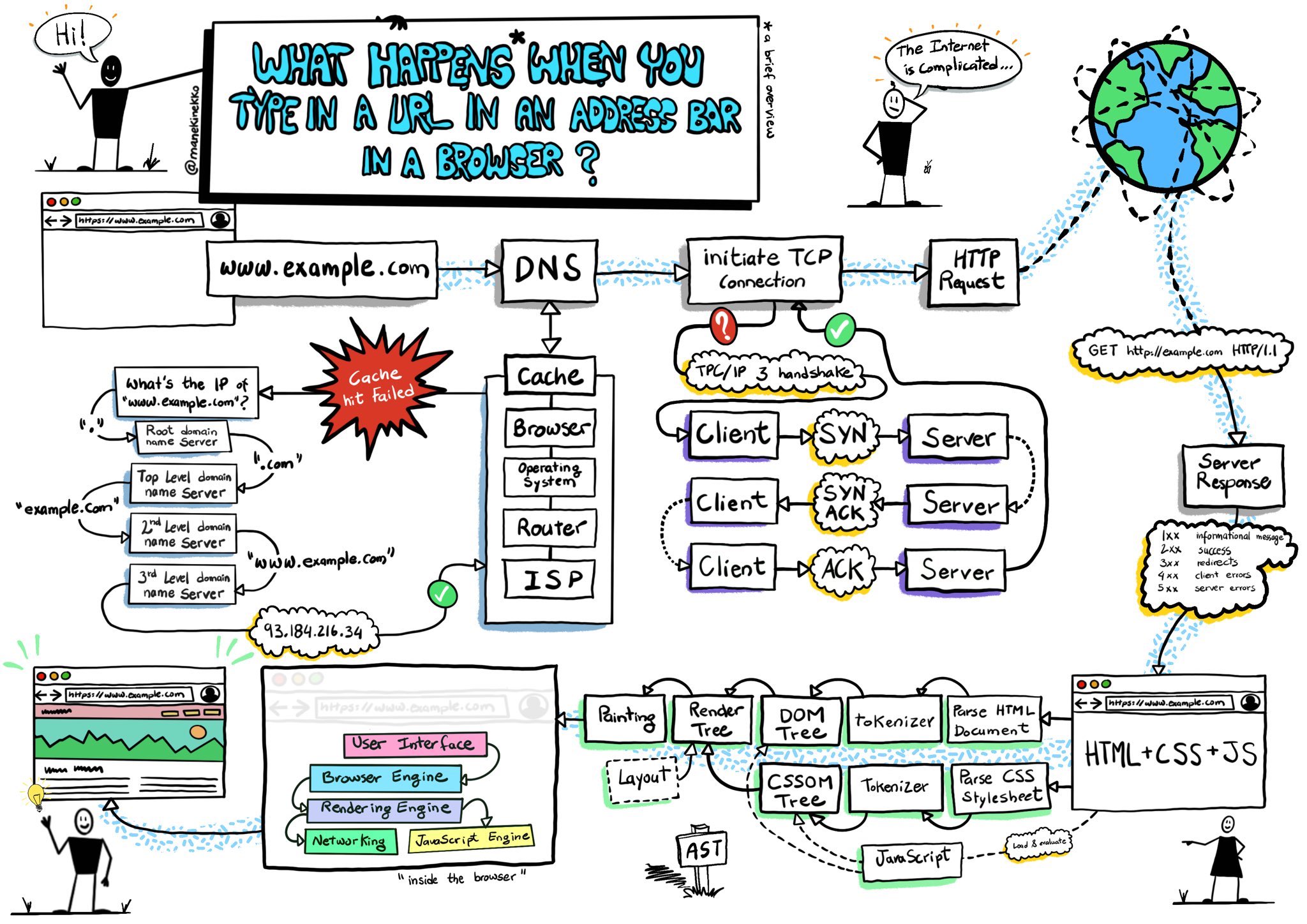
At first glance a browser feels simple: you type an address, and a page appears. Behind that single moment, though, a lot happens very quickly. When you open a page, the browser:
- Downloads the HTML, CSS, and JS files
- Parses the HTML into the DOM (Module 12)
- Applies the CSS to style everything
- Runs the JavaScript to add behavior
- Renders (paints) the result on screen
Think of it like assembling flat-pack furniture. The HTML is the parts list and instructions (the structure), the CSS is the finish and paint (the style), and JavaScript is the helper who can later rearrange the room (the behavior). The browser reads all three and builds the finished piece in front of you — usually in well under a second.
Key idea: Two engines power every browser — a rendering engine that turns HTML/CSS into pixels, and a JavaScript engine that runs your code. You write the files; these engines do the heavy lifting.
Explain like I'm new: You never talk to the screen directly. You hand the browser three text files, and its engines translate them into the colorful, clickable page a person actually sees. Your job is to write clear instructions; the engines do the drawing.
2. A Short History
Browsers have evolved through decades of competition — from early text browsers to today's fast, standards-based engines. Because different browsers once behaved differently, developers learned to test across browsers and rely on shared web standards (from the W3C) so pages work everywhere.
In the early days, a button styled to look perfect in one browser might appear broken in another, and developers wasted hours writing special code for each one. Standards changed that. Today the major engines — Blink (Chrome and Edge), Gecko (Firefox), and WebKit (Safari) — largely agree on how HTML, CSS, and JavaScript should behave, so the same code generally looks and works the same for everyone.
Real-world use case: Before shipping a page, professional teams still open it in Chrome, Firefox, and Safari — and on a phone — to catch small differences. A quick cross-browser check is cheap insurance against a layout that only works on your machine.
3. Browser Extensions
A browser extension adds features to your browser — and here's the fun part: it's built with the same HTML, CSS, and JavaScript you're already learning, plus a small settings file called a manifest.
The source curriculum's "green" extension, for example, calls an API and shows data in a little popup — a real, useful mini-app that lives in your toolbar.
A minimal manifest.json is surprisingly short:
[object Object],
  ,[object Object],[object Object], ,[object Object],[object Object],
  ,[object Object],[object Object], ,[object Object],[object Object],
  ,[object Object],[object Object], ,[object Object],[object Object],
  ,[object Object],[object Object], ,[object Object], ,[object Object],[object Object], ,[object Object], ,[object Object],
,[object Object],
That file simply tells the browser the extension's name, its version, and which HTML page to show when you click its icon. The popup.html it points to is an ordinary web page — the very thing you already know how to build.
Beginner tip: If you can build a web page, you can build a browser extension. It's just your familiar files in a special folder with a manifest.json describing what the extension does.
4. Permissions
Extensions (and websites) can ask for permissions — to read a page, access storage, or use your location. Grant only what's needed, and be cautious: more access means more risk.
Think of permissions like keys on a keyring. An extension that only needs to store a setting should get the "storage" key and nothing more. If a simple to-do extension suddenly asks to read every page you visit, that's a red flag worth questioning — just as you'd wonder why a flashlight app wanted your contacts.
Common mistake: Requesting broad permissions "just in case." Each extra permission is another thing that can go wrong or be abused. List only what your extension truly uses — users (and browser stores) trust lean, focused permissions far more.
Key Takeaway: A browser downloads your files, builds the DOM, applies CSS, runs JS, and paints the page — powered by a rendering engine and a JavaScript engine. Extensions are mini-apps built from the same HTML/CSS/JS plus a manifest.json. Always request the fewest permissions necessary.
Further Learning
Adapted from Microsoft's Web Dev for Beginners (MIT License). Sketchnote by Tomomi Imura.