"Events are how your page listens to the user. Forms are how it collects what they have to say."
Learning Objectives
By the end of this module, you will be able to:
- Respond to user actions with event listeners
- Handle clicks, keypresses, and submits
- Read data from a form safely
- Update the page based on state
1. Events: Reacting to Users
An event is something the user does — a click, a keypress, a form submit. You react with an event listener:
[object Object], button = ,[object Object],.,[object Object],(,[object Object],);
button.,[object Object],(,[object Object],, ,[object Object], {
  ,[object Object],.,[object Object],(,[object Object],);
});
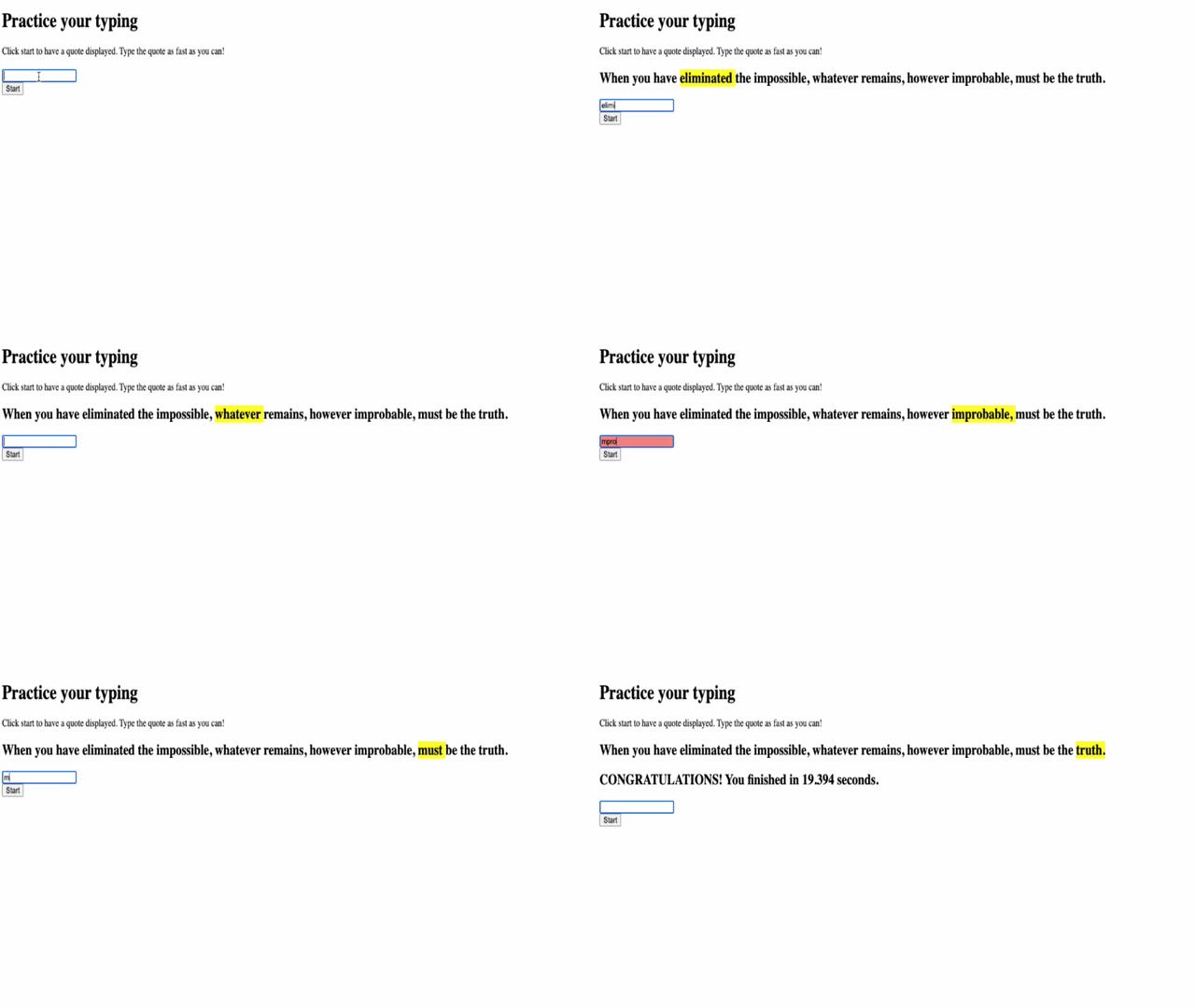
The typing game above listens for keydown events and checks each letter you press — pure event handling.
Key idea: The pattern is always the same: element.addEventListener("eventName", handler). Common events include click, keydown, input, and submit.
The function you pass — the handler — runs every time the event fires. It also receives an event object (often called e or event) packed with details: which key was pressed, where the mouse clicked, which element triggered it. You'll reach for event.target (the element) and event.key (the key) constantly.
Common events you'll use:
click— a button or link is pressedinput— the text in a field changessubmit— a form is sentkeydown— a key goes down
Explain like I'm new: addEventListener is like telling the page, "Hey, when this happens, run this for me." You set it up once, then go about your day — the browser calls your function automatically whenever the event occurs.
Real-world use case: Think about any app you use: tapping "like," typing a message, dragging a slider. Every one of those is an event with a listener behind it. Learning events is learning how software feels alive under your fingers.
2. Forms & Input
Forms collect data. Read what the user typed with .value, and always stop the page from reloading on submit:
form.,[object Object],(,[object Object],, ,[object Object], {
  event.,[object Object],();         ,[object Object],
  ,[object Object], name = input.,[object Object],;       ,[object Object],
  ,[object Object],.,[object Object],(,[object Object],, name);
});
Walk through it: the browser fires submit when the user hits Enter or clicks the submit button. event.preventDefault() cancels the browser's default behavior (a full-page reload), so your code stays in control. Then input.value reads whatever they typed. From here you could validate it, save it, or show it on screen — the form has done its job of collecting the data.
Different inputs expose their data slightly differently: text boxes and text areas use .value, while checkboxes use .checked (true/false). But the pattern is the same — grab the element, read its property, act on it.
Try this: Add a text input and a button. On click, read input.value and show "Hello, " + input.value in a paragraph below. You've just built a two-way conversation between user and page.
Beginner mistake: Forgetting event.preventDefault() on a form submit. Without it, the browser reloads the page and your JavaScript appears to "do nothing." It's one of the most common early stumbles.
3. UI State
State is the current situation your interface reflects — a score, whether a menu is open, a to-do list. The golden pattern:
event happens → update the state → update the DOM to match
[object Object], count = ,[object Object],;
button.,[object Object],(,[object Object],, ,[object Object], {
  count++;                        ,[object Object],
  display.,[object Object], = count;    ,[object Object],
});
That three-step rhythm — event → state → DOM — is worth memorizing. The state (count) is the single source of truth; the DOM is just a reflection of it. Change the state, then repaint the page to match, and you never have to wonder what the "real" value is.
Concept: Bugs in interactive apps almost always come from the state and the DOM drifting apart — the number in your variable says one thing, the screen says another. Always update state first, then update the display from it, and they stay in sync.
Practice task: Build a click counter: a button and a number. Each click adds one to a count variable and shows it on screen. That tiny loop — event → state → DOM — is the heartbeat of every interactive app.
Key Takeaway: Interactive pages listen for events (addEventListener for clicks, keys, submits) and read forms with .value — always calling event.preventDefault() on submit. The core rhythm of every app is: an event updates state, and you update the DOM to match.
Further Learning
Adapted from Microsoft's Web Dev for Beginners (MIT License). Typing-game demo from the source curriculum.