"The canvas is a blank drawing surface in the browser. A game loop brings it to life — many tiny redraws per second create smooth motion."
Learning Objectives
By the end of this module, you will be able to:
- Understand what the
<canvas>element is for - Draw shapes and images with JavaScript
- Explain the game loop
- See how simple motion is created
1. The Canvas Element
<canvas> is an HTML element you draw on with JavaScript — perfect for games, charts, and animations.
Everything else in HTML — headings, buttons, images — arrives with built-in appearance and behavior. The canvas is different: it starts as a blank rectangle, an empty sheet of graph paper, and nothing appears until your code draws it. That freedom is exactly why games and data visualizations love it.
[object Object],[object Object],[object Object], ctx = ,[object Object],.,[object Object],(,[object Object],).,[object Object],(,[object Object],);
ctx.,[object Object], = ,[object Object],;
ctx.,[object Object],(,[object Object],, ,[object Object],, ,[object Object],, ,[object Object],); ,[object Object],Those four numbers in fillRect mean x, y, width, height. Canvas coordinates start at the top-left corner as (0, 0), with x growing to the right and y growing downward — so (50, 50) sits 50 pixels right and 50 pixels down from that corner. Getting comfortable with this grid is most of the battle. Beyond rectangles, the same context can draw lines, circles, text, and even photos with ctx.drawImage(...) — those few methods are the building blocks of any scene, from a game sprite to a bar chart.
Key idea: Everything on a canvas is drawn with code through its "context" (ctx). Unlike normal HTML elements, canvas drawings aren't in the DOM — you paint pixels, then repaint to change them.
Real-world use case: Canvas powers far more than games — online image editors, charting libraries, photo filters, interactive maps, and the signature boxes on delivery apps all draw onto a canvas. Learn it once and these very different tools stop feeling like magic.
2. The Game Loop
Animation and games work by repeating two steps many times per second:
1. Update the state (move things, check rules) → 2. Draw everything in its new position → repeat.
[object Object], ,[object Object],(,[object Object],) {
  ,[object Object],();               ,[object Object],
  ,[object Object],();                 ,[object Object],
  ,[object Object],(loop);   ,[object Object],
}
,[object Object],();
Splitting each frame into "update" and "draw" keeps your code sane: one part decides what is true now (positions, scores, collisions), and the other simply shows that truth. Mixing the two — nudging things around in the middle of drawing them — is how animations turn into tangled bugs.
requestAnimationFrame runs your loop in sync with the screen (about 60 times a second) for smooth motion.
Concept: Why not just use setInterval to redraw? requestAnimationFrame is smarter — it pauses when the tab is hidden (saving battery) and matches the display's refresh rate, so motion stays smooth and efficient instead of fighting the screen.
3. How Motion Happens
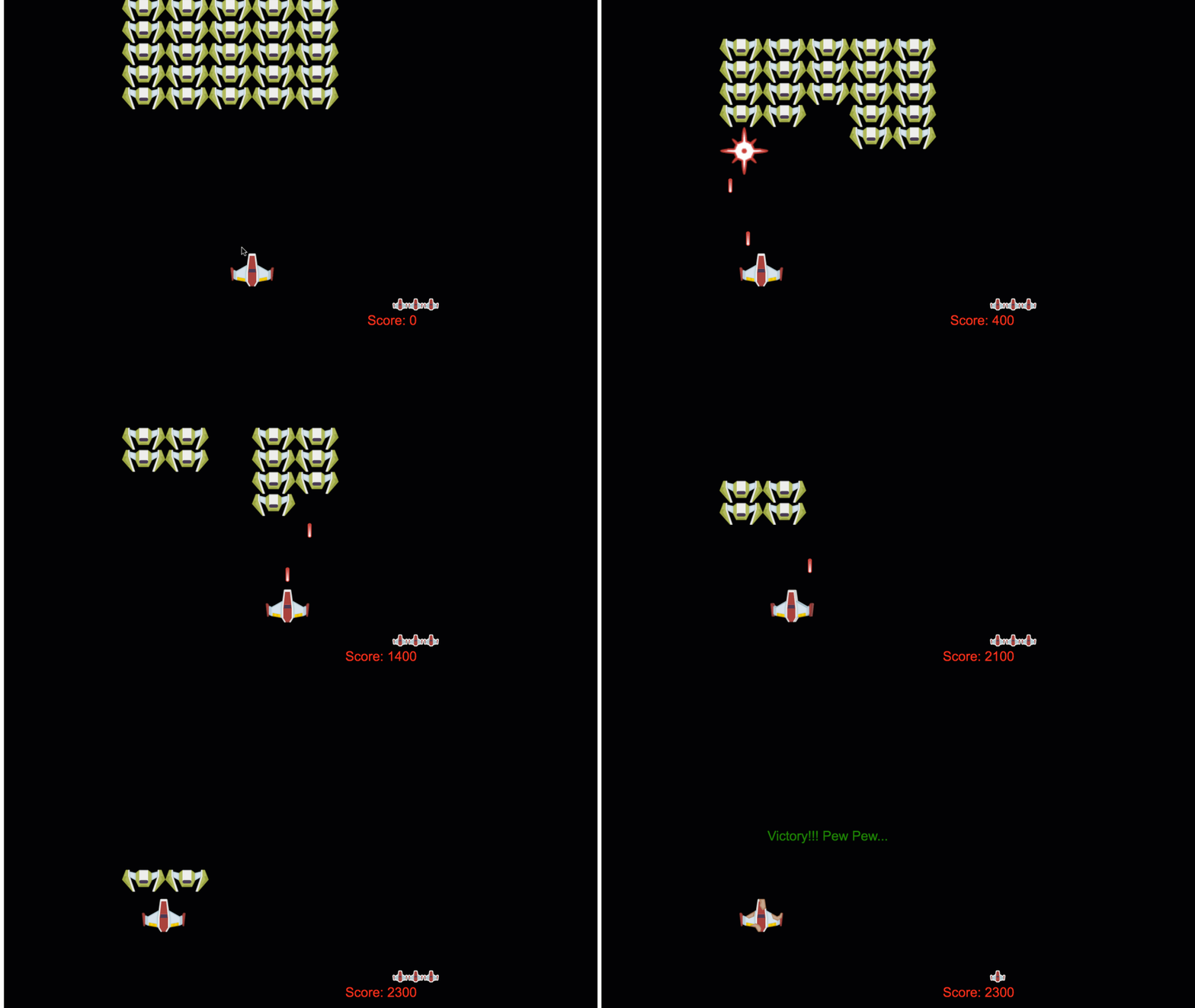
There's no real movement — just redrawing something at a slightly new position each frame. Do that 60 times a second and your eyes see smooth motion. The space game moves ships, fires lasers, and detects collisions this way.
It's the same trick as a flipbook or a movie reel: each page (frame) is a still image, but flip through 60 of them a second and your brain fuses them into motion. A ship at x=100 this frame and x=102 the next looks like it's gliding, though nothing ever truly "moved." Here is that idea in a few lines:
[object Object], x = ,[object Object],;
,[object Object], ,[object Object],(,[object Object],) {
  ctx.,[object Object],(,[object Object],, ,[object Object],, ,[object Object],, ,[object Object],);   ,[object Object],
  ctx.,[object Object],(x, ,[object Object],, ,[object Object],, ,[object Object],);    ,[object Object],
  x += ,[object Object],;                          ,[object Object],
  ,[object Object],(loop);
}
,[object Object],();Beginner mistake: Forgetting to clear the canvas each frame (ctx.clearRect(...)). Without it, every position of your moving object stays painted, leaving a smeared trail across the screen.
Practice task: Draw a small square on a canvas, then use a game loop to move it 2 pixels right each frame (remember to clear first!). Watch your first animation glide across the screen.
Key Takeaway: <canvas> is a code-driven drawing surface accessed through its context (ctx). Animation uses a game loop — update, then draw, repeated ~60×/second via requestAnimationFrame. "Motion" is really just redrawing at new positions each frame — and you must clear the canvas between frames.
Further Learning
Adapted from Microsoft's Web Dev for Beginners (MIT License). Space game from the source curriculum.